
Overview
This article explains how to configure your outgoing voicemail greeting in 3CX and how to access your voicemail messages. Use this guide when setting up a new extension, updating an existing greeting, or assisting a user who needs to record or upload a personalized voicemail message across any 3CX client.
Prerequisites
- An active 3CX extension with voicemail enabled
- Access to the 3CX Web Client, Windows Desktop App, smartphone app, or a provisioned desk phone
- A pre-recorded audio file (if uploading rather than recording directly) in a supported format (e.g., WAV or MP3)
- Your voicemail PIN (required for desk phone access)
Steps
- Open Your Profile Settings in the Web Client or Desktop App
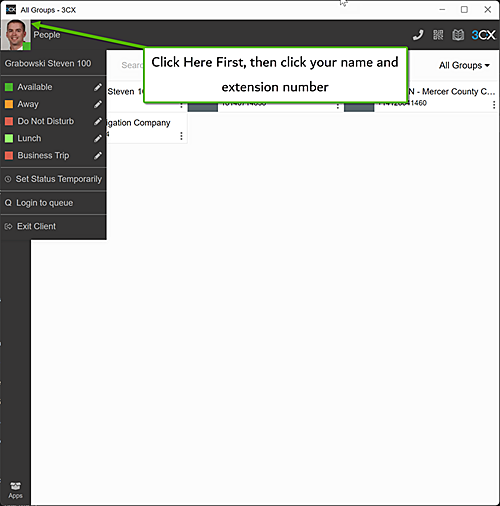
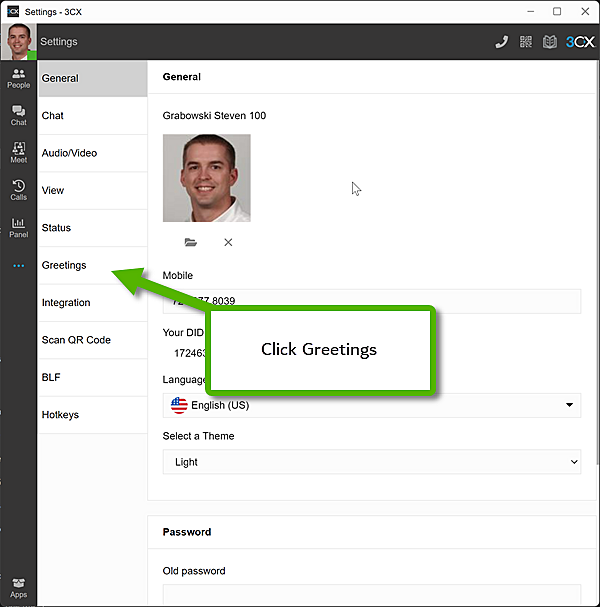
In the 3CX Web Client or Windows Desktop App, click your Avatar (profile picture or initials) in the top corner, then select Your Name from the dropdown menu, and navigate to the Greetings tab.
- Record or Upload a Voicemail Greeting
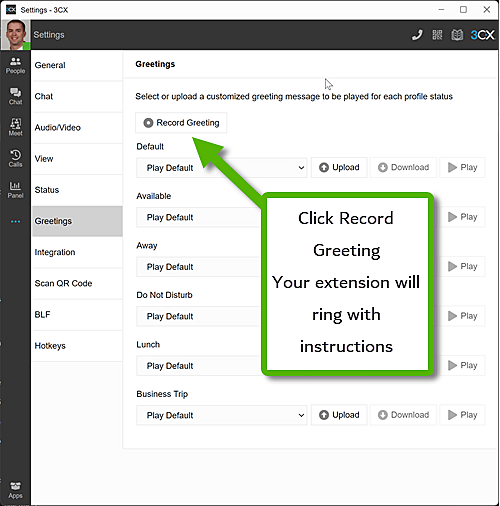
On the Greetings screen, you have two options:- Record a new greeting: Use the built-in recorder to capture your message directly within the app.
- Upload a pre-recorded message: Click the upload option and select your prepared audio file.
- Save Your Greeting
After recording or uploading, confirm and save the greeting. Verify the correct greeting is assigned to the appropriate status before exiting the settings screen.
Changing Your Greeting from the 3CX Mobile App
The 3CX iOS and Android mobile apps do not include a built-in interface for recording or uploading a personal voicemail greeting. To change your greeting from a mobile device, dial into your voicemail using the audio menu.
- Open the 3CX Mobile App
Launch the 3CX app on your iPhone or Android device and confirm your extension is connected (look for the green status indicator at the top of the screen). - Dial Your Voicemail Extension
Tap the Dialpad (keypad) icon, dial 999, and place the call.999is the default 3CX feature code that connects you directly to your own voicemail inbox. - Enter Your Voicemail PIN
When prompted, enter your voicemail PIN followed by #. If you do not know your PIN, an administrator can reset it from the 3CX Management Console under your extension's settings. - Follow the Audio Prompts to Record a New Greeting
From the main voicemail menu, listen for the option to manage or record your personal greeting (typically presented as "Greeting Options" or "Personal Options"). Follow the spoken prompts to select which status greeting to update (Available, Away, Do Not Disturb, etc.), record your new message after the tone, then confirm to save.
Tip: If you prefer a visual interface or want to upload a polished, pre-recorded audio file, use the 3CX Web Client or Windows Desktop App as described in the Steps section above. The mobile dial-in method is best for quick updates when you are away from a computer.
Listening to Voicemail Messages
Voicemail messages can be accessed from any 3CX client using the methods below:
- Smartphone App: Tap Voicemail from the main navigation menu.
- Web Client / Desktop App: Click the ... (More) menu, then select Voicemail.
- Desk Phone: Dial your voicemail number or press the Voicemail / Message button on the phone, enter your PIN, press #, and then press * to begin playing messages.
Notes & Tips
- 3CX allows a unique greeting for each user status. It is best practice to configure greetings for all statuses you regularly use, rather than relying on a single default message.
- If a user has not set a custom greeting, 3CX will play a generic system-generated message. Always configure a personalized greeting for a professional appearance.
- If the user has forgotten their voicemail PIN, an administrator can reset it via the 3CX Management Console under the user's extension settings.
- Pre-recorded files should be clear, free of background noise, and at an appropriate length — typically 10–20 seconds for a standard greeting.