
Overview
This article explains how to record a new greeting for a 3CX Digital Receptionist (Auto-Attendant). Technicians or administrators would follow this process when a client needs to update their main phone menu message — for example, to reflect holiday hours, a business name change, or a new set of menu options.
Prerequisites
- Admin credentials for the client's 3CX PBX management console
- Access to a physical or software extension on the 3CX system to record the message via phone
- The new message script or recording content prepared in advance
Steps
- Log In to the 3CX Management Console
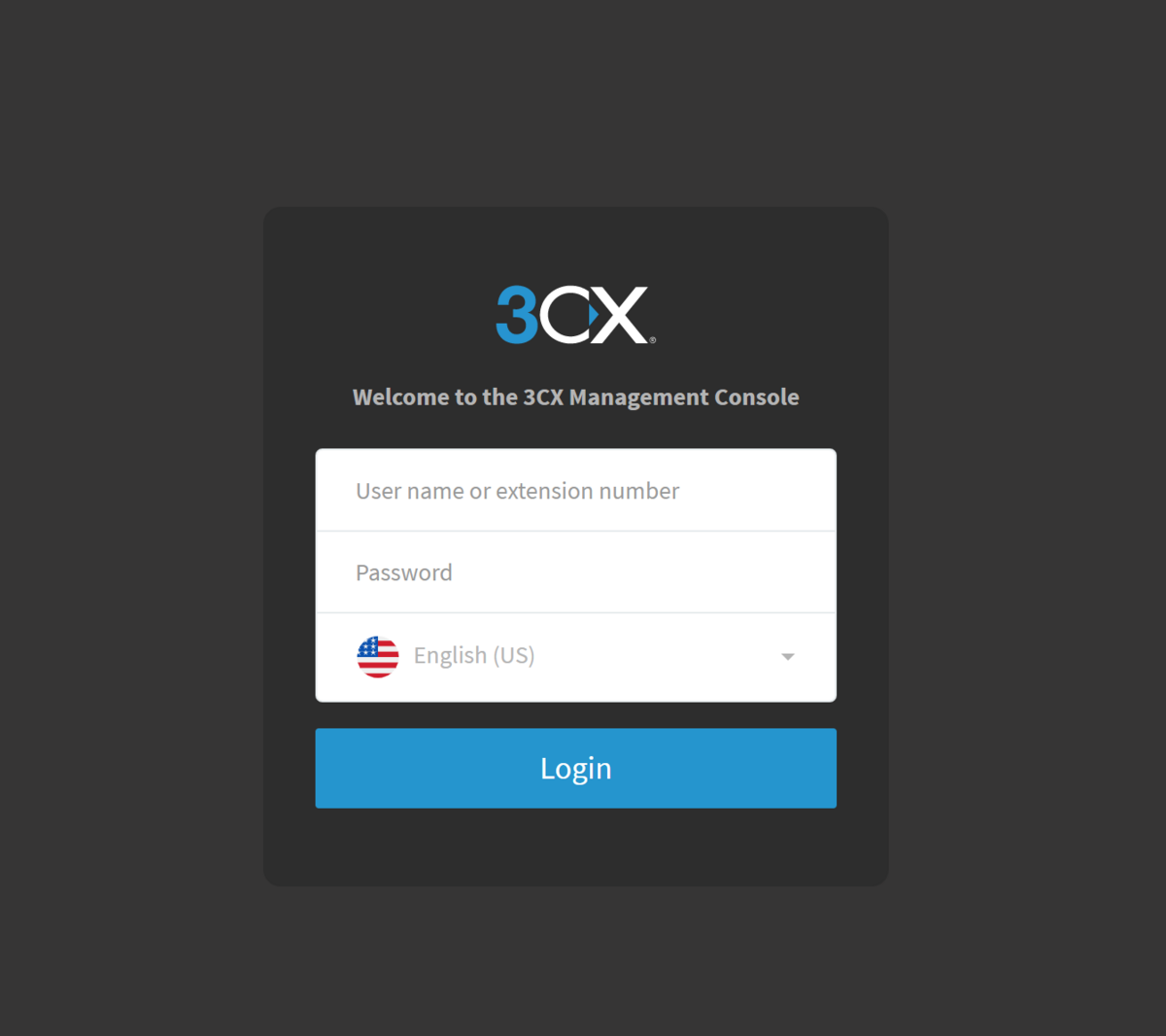
Navigate to the client's 3CX web management console URL in your browser. Enter the admin username and password, then click Login.
- Navigate to Digital Receptionist
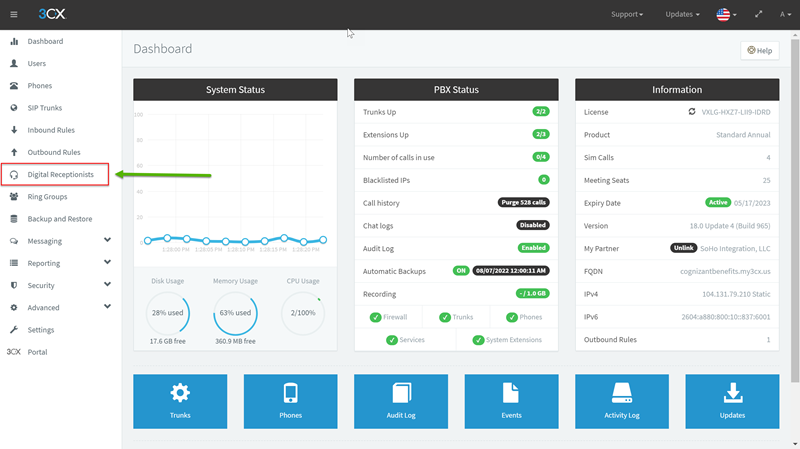
After logging in, you will land on the main Dashboard. In the left-hand navigation column, click on Digital Receptionist.
- Select the Auto-Attendant to Update
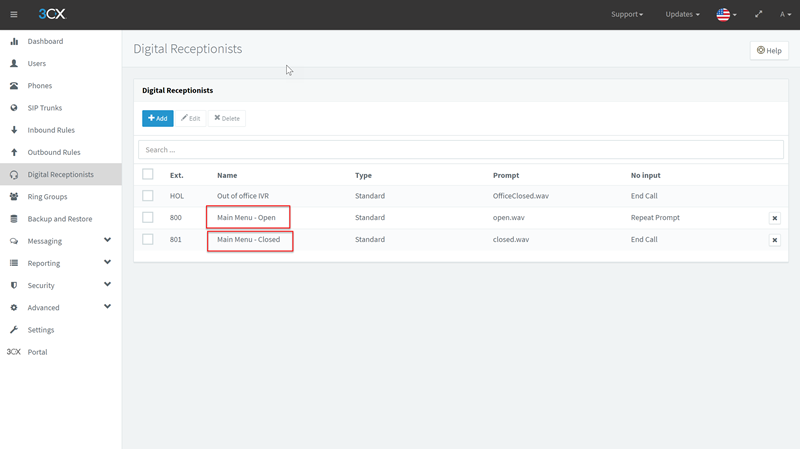
A list of configured Digital Receptionists will be displayed. There may be several entries — most clients have at minimum an Open Hours menu and a Closed Hours menu. Click on the row for the specific Auto-Attendant whose greeting you need to re-record.
- Initiate the Recording
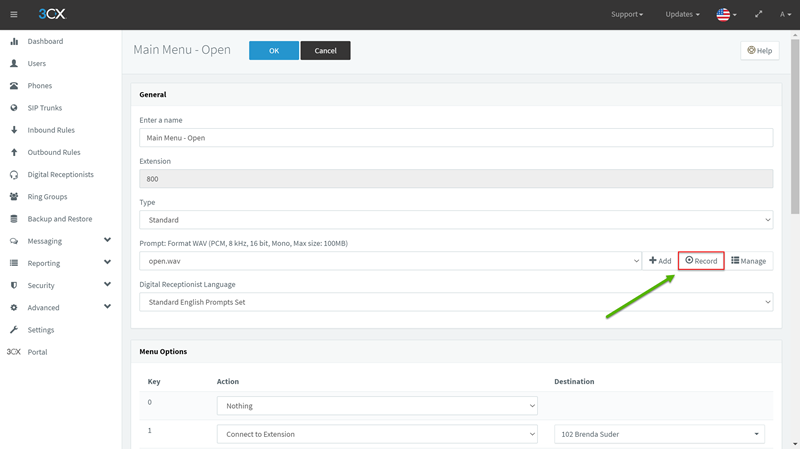
With the Digital Receptionist open for editing, you will see several configuration options. To re-record the greeting message, click the Record button as highlighted below.
- Name the File and Select the Recording Extension
A dialog box will appear prompting you for two pieces of information:- (1) File Name: Enter a descriptive name for the recording. It is recommended to include the date in the filename for easy identification — for example:
Outgoing Message 04-27-2025 - (2) Extension: Select the phone extension that the system should ring to capture the recording. Ensure you have access to this extension before proceeding.
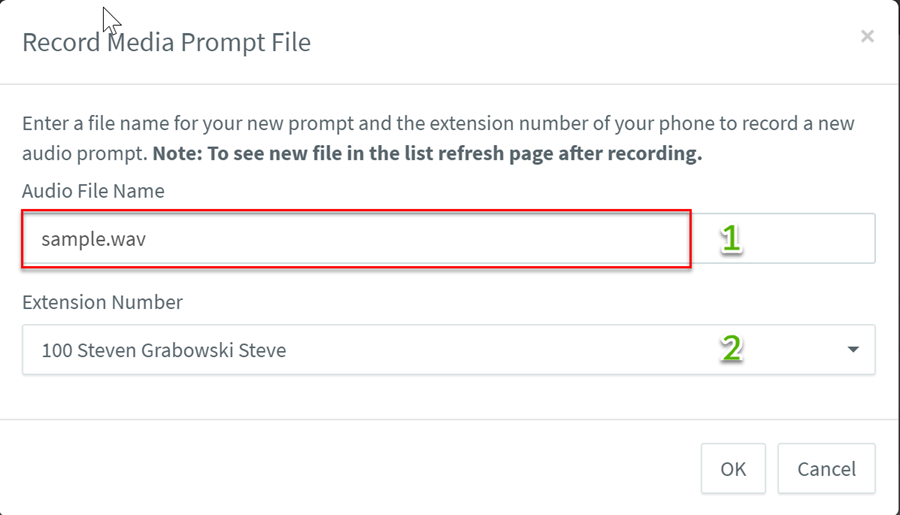
- (1) File Name: Enter a descriptive name for the recording. It is recommended to include the date in the filename for easy identification — for example:
- Record the Message
Click OK. The extension selected in the previous step will ring immediately. Answer the call and follow the system prompts to record the new greeting. The recording will be saved under the filename provided and automatically associated with the Digital Receptionist.
Notes & Tips
- Always include the date in the recording filename (e.g., Outgoing Message 04-27-2025) to make it easy to identify the most recent version and maintain an audit trail of past recordings.
- Most clients will have at least two Auto-Attendants: one for open hours and one for closed/after-hours. Confirm with the client which menu(s) need to be updated before making changes.
- Have the recording script fully written and reviewed before initiating the call — once the extension rings, the system will begin recording promptly.
- If the wrong extension is selected or the call is missed, simply repeat the process and initiate a new recording session.
- Old recordings are not automatically deleted. Periodically review and clean up outdated greeting files to keep the system organized.