
Overview
This article explains how to place and manage calls using the 3CX Web Client. It covers how to dial contacts, select your preferred calling device, and use in-call features such as transfer, conference, recording, and video. Use this guide whenever you need to make or manage calls directly from your browser.
Prerequisites
- Access to the 3CX Web Client via a supported browser
- A valid 3CX extension and login credentials
- A configured calling device (browser, desktop app, or mobile app) associated with your extension
Steps
- Open the Dialer
Click the dialer icon located in the top-right corner of the Web Client to open the dial pad.
- Enter a Number or Search for a Contact
Type a phone number, name, extension number, or email address into the search bar. Once the correct contact or number appears, click the handset icon to initiate the call.
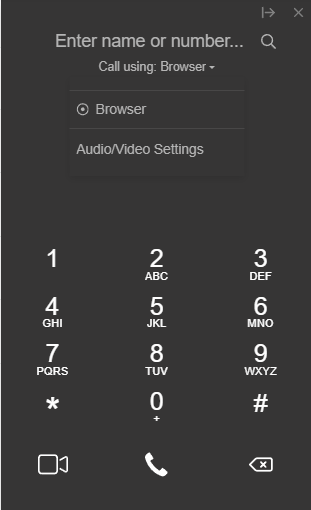
- Select a Calling Device
Below the search bar, you will see a Call using: Browser option. Click the arrow next to it to open a dropdown menu listing all available devices and apps (e.g., browser, desktop app, mobile app). Select the device you want to use to place the call. - Use In-Call Features
During an active call, the following actions are available:- Transfer a Call — Click Transfer and enter the name or number of the recipient. The call will be transferred immediately without announcement.
- Attended Transfer — Click Att. Transfer to place the current caller on hold and announce the call to the receiving party before completing the transfer. This allows you to introduce the caller before handing off.
- Start a Conference Call — Click Conference and enter the name or number of the participant(s) you wish to add. 3CX will dial them, and once they answer, they will be merged into the existing call.
- Record a Call — Click Record at any point during the call to begin recording. Click again to stop. Recordings can be accessed through the Web Client, provided you have the required permissions.
- Initiate a New Call — Click New Call to start a second call on a separate line without ending the current call. Enter the name or number of the new callee to proceed.
- Switch to Video — Click the Video icon in the dial pad to upgrade your current audio call to a video call.
Notes & Tips
- If your browser is not producing audio, ensure your microphone and speaker permissions are granted for the 3CX Web Client in your browser settings.
- Call recordings are subject to your extension's permissions. If the Record button is unavailable or recordings are not accessible, contact your system administrator to verify your rights.
- Attended Transfer is recommended over a blind transfer when the receiving party needs context about the caller before the handoff.
- When using New Call, the original call is automatically placed on hold until you return to it or merge the calls into a conference.