
Overview
This article explains how to use the 3CX app on an iOS device. It covers making and managing calls, using Siri integration, configuring the Speed Dial widget, scheduling and creating conferences, managing availability status, and navigating app settings. Use this guide to help end users get the most out of their 3CX mobile experience.
Prerequisites
- 3CX iOS app installed and configured on the user's iPhone or iPad
- A valid 3CX extension provisioned to the device
- Active internet connection (Wi-Fi or mobile data)
- Siri enabled on the device (for Siri integration steps)
Making a Call
Making a call from the 3CX iOS app works similarly to using your phone's native dialer.
- Dial by Number
Open the app and enter a number using the dialpad, then tap Call. - Dial by Contact
Tap Contacts to open the contact directory. Search by name, extension number, or email address. Tap the contact, then select Call.
Active Call Options
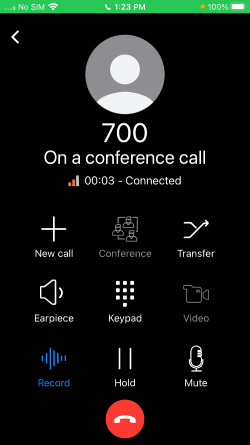
During an active call, the following actions are available:
- Transfer — Transfer the call using one of two methods:
- Blind Transfer — Transfers the call directly to the recipient without speaking to them first.
- Att. Transfer (Attended Transfer) — Places the current caller on hold, allows you to speak with the recipient first, then completes the transfer.
- Conference — Adds additional participants to the current call.
- Record — Records the active conversation.
- Video — Escalates the call to a video call.
- New Call — Places the current call on hold and dials a new number.
Using Siri to Make a Call
You can use Siri to place calls through 3CX by name or extension number.
- Invoke Siri with a Call Command
Say a command such as "Siri, call James using 3CX" or "Siri, call 101 using 3CX". - Grant Permissions on First Use
The first time you make a request, Siri will ask for permission to access 3CX data. Tap Yes to allow access. - Siri Launches 3CX
Siri will open the 3CX app and initiate the call automatically. - Open the App via Siri
You can launch the 3CX app at any time by saying: "Siri, open 3CX". - Disambiguate Duplicate Names
If multiple contacts share the same name, Siri will prompt you to select the correct number before dialing.
Speed Dial Widget
The 3CX Speed Dial widget allows you to make calls directly from your iOS home or lock screen without opening the app.
- Open Widget Settings
Tap the Settings menu within the 3CX app and select Speed Dial Widget. - Choose a View Option
Select one of the three available display styles:- Buddies — Up to 20 contacts, plus quick access to Missed Calls and Messages.
- Cards — Up to 10 contacts displayed in a 2-column card layout.
- List — A simple list of your 5 most frequently called contacts.
- Add Contacts to the Widget
Tap any empty slot to assign an extension or contact to that position. - Save and Exit
Press Settings to return to the previous menu when finished. - Add the Widget to Your Screen
Follow the standard iOS process to add the 3CX widget to your home screen or Today View.
Scheduling a Conference Call
The 3CX iOS app allows you to schedule conference calls in advance and invite participants directly from the app.
- Open the Schedule Menu
Tap the menu button in the top-left corner and select Schedule.
- Enter Conference Details
Add a subject and set the date and time for the conference. A PIN will be automatically generated for the call. - Configure Calendar Integration
Leave Add to Calendar enabled to create a corresponding event in your device calendar and allow you to invite participants via email. Disable this option if you do not want to create a calendar event. - Add Participants
Select existing contacts from your directory, or enter participants' phone numbers or email addresses manually. Note: participants cannot be modified after the conference is saved. - Save the Conference
Tap Save to finalize the scheduled conference.
Creating an Ad-Hoc Conference
You can escalate an active call into a multi-party conference at any time by adding participants on the fly.
The following statuses are available:
- Available
- Away
- Do Not Disturb
- Lunch
- Business Trip
- Set Status Temporarily
To configure call forwarding rules for a status, tap the arrow icon next to your current status. This allows you to customize how incoming calls are handled while that status is active.
App Settings
The 3CX iOS app settings menu provides access to account management and device configuration options.
Tap the menu button at the top of the screen to access the following options:
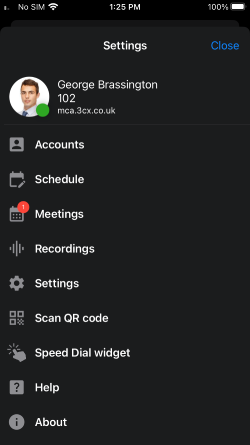
- Switch Accounts — Toggle between multiple configured extensions and view their details.
- Add a New Extension — Register an additional 3CX extension to the app.
- Audio & Troubleshooting Settings — Adjust audio preferences and access diagnostic options.
- Scan a QR Code — Quickly provision your extension or add an additional extension by scanning a QR code provided by your administrator.
Notes & Tips
- Participants in a scheduled conference call cannot be changed after the conference has been saved. Plan your invite list carefully before tapping Save.
- Video escalation is only supported on one-to-one calls. You cannot convert an audio conference into a video conference.
- The Speed Dial widget requires iOS widget support. Ensure your iOS version is compatible if the widget does not appear as an option.
- Setting an appropriate status (e.g., Do Not Disturb or Lunch) helps reduce missed calls by allowing colleagues and the phone system to route calls according to your configured forwarding rules.
- If Siri fails to recognize the 3CX app, verify that Siri is enabled under iOS Settings > Siri & Search and that 3CX has been granted the necessary permissions.