
Overview
This article explains how to install the 3CX Web Client as a Progressive Web App (PWA) on a user's workstation. Installing as a PWA gives the web client a native app look and feel — including its own window, taskbar icon, and optional auto-start behavior — without requiring a full desktop application installation. Technicians should follow this guide when onboarding users who will access 3CX through a browser-based client.
Prerequisites
- Access to the 3CX Web Client URL for the client's 3CX instance
- Google Chrome or Microsoft Edge installed on the user's workstation (PWA installation is supported in both browsers)
- User must be logged into the 3CX Web Client prior to installing the PWA
Steps
- Open the 3CX Web Client
Navigate to the client's 3CX Web Client URL in Google Chrome or Microsoft Edge and log in with the user's credentials. - Access the Client Installation Dialog
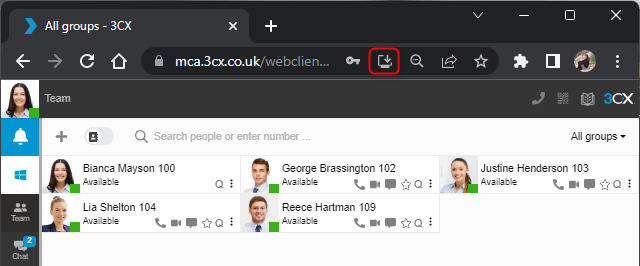
If no client has been installed yet, click the OS icon displayed below the user avatar in the 3CX interface. A dialog box will appear with available client options.
- Select the Web App (PWA) Option
In the dialog, select Web App (PWA) and then click the Install button to proceed with the PWA installation. - Alternative: Install Directly from the Browser Address Bar
If the dialog is not available, look for the Install button in the browser's address bar — this icon appears as a screen with an arrow (circled in red in the screenshot below). Click it and confirm the installation prompt.
- Configure Auto-Start (Optional but Recommended)
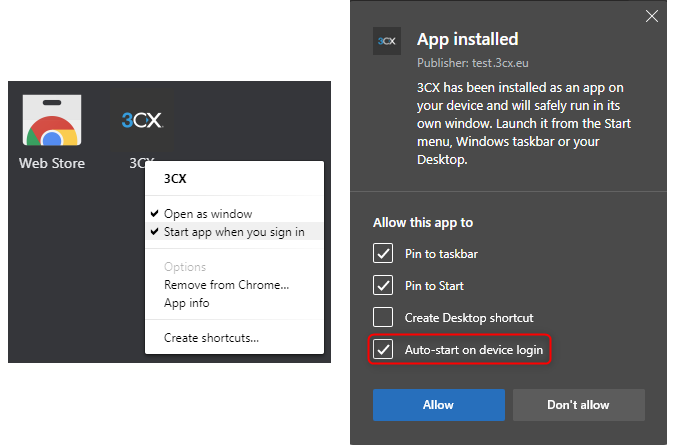
To ensure 3CX launches automatically when the user signs into Windows, configure auto-start based on the browser being used:- Google Chrome: Open Chrome and navigate to
chrome://appsin the address bar. Right-click on the 3CX app and select Start app when you sign in. - Microsoft Edge: During the installation dialog that appears after completing the PWA install, select the option to Auto-start the app on sign-in.
- Google Chrome: Open Chrome and navigate to
Notes & Tips
- The PWA option is recommended for users who prefer not to install the full 3CX desktop application, as it provides a comparable experience with minimal setup.
- The PWA must be installed per user and per browser — it is not a system-wide installation.
- If the install icon does not appear in the address bar, ensure the browser is up to date, as older versions may not support PWA installation prompts.
- Users on Microsoft Edge may see additional PWA management options under Settings > Apps within the browser.