
Overview
This article walks through installing and configuring the 3CX app on an iPhone. The 3CX iOS app allows users to make and receive calls, access the company phonebook, chat with colleagues, and join video conferences using their office extension from any location. A technician or end user would follow these steps when onboarding a new user or setting up the app on a new or replacement device.
Prerequisites
- An iPhone running a supported version of iOS
- A valid 3CX extension provisioned by your administrator
- Access to the 3CX Welcome email (which contains your QR code) or access to the 3CX Web Client or Desktop App to retrieve the QR code
- An active internet connection (Wi-Fi or cellular)
Steps
- Install the 3CX App from the App Store
Download and install the 3CX app on the user's iPhone from the Apple App Store. Once installed, open the app, read and accept the license agreement, and grant all requested permissions including access to the camera and microphone. These permissions are required for the app to function correctly for calls and video conferencing.
Download 3CX from the App Store - Locate Your QR Code
The QR code used to configure the app can be found in one of two places:- 3CX Welcome Email: When a 3CX extension is created, the system sends a Welcome email to the user containing a personal QR code. Check the user's inbox for an email from 3CX.
- 3CX Web Client or Desktop App: Log in to the 3CX Web Client or open the Desktop App. Click the QR code icon located next to the dialer. This will display a scannable QR code tied to the user's extension.

- Scan the QR Code in the 3CX App
In the 3CX iOS app, select the option to scan a QR code when prompted during initial setup. Point the iPhone camera at the QR code displayed on your screen or printed in the Welcome email. The app will automatically read the code and configure the extension — no manual entry of server addresses or credentials is required. - Confirm the App Is Ready
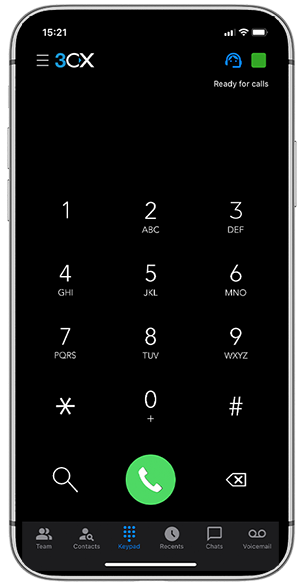
Once the QR code has been scanned successfully, the app will display a "Ready for calls" status. The user's extension is now fully configured and active on the device.
Notes & Tips
- Each QR code is unique to a specific extension and device configuration. Do not share QR codes between users.
- If the QR code from the Welcome email has expired, a new provisioning link or QR code can be resent by the 3CX administrator from the management console.
- Ensure the user grants all required permissions (camera, microphone) during initial setup. Denying these will prevent calls and video from working correctly. Permissions can be adjusted later in iPhone Settings > 3CX.
- For best call quality, connect to Wi-Fi when available. Mobile data (4G/5G) is supported but may affect quality in low-signal areas.
- Push notifications should be enabled on the device to ensure incoming calls are received when the app is running in the background.