
Overview
This article explains how to use the 3CX mobile app on an Android device to make and receive calls, manage conferencing, set availability statuses, and customize app settings. It is intended for end users and technicians who need to configure or support 3CX on Android smartphones. Use this guide when onboarding a new user or troubleshooting common usage questions.
Prerequisites
- The 3CX Android app installed and configured with an active account
- A valid 3CX extension provisioned by your administrator
- For video conferencing: the 3CX Video Conference App installed from the Google Play Store
- For Google Assistant calling: Google Assistant enabled with device and assistant region set to English (US)
Steps
Placing a Call
- Search for a contact
Open the app and tap Contacts. Search by name, phone number, or email address to locate the person you want to call. - Initiate the call
Tap the phone icon next to the contact. The call will connect through your office phone system using your mobile data or Wi-Fi connection. - Use in-call options
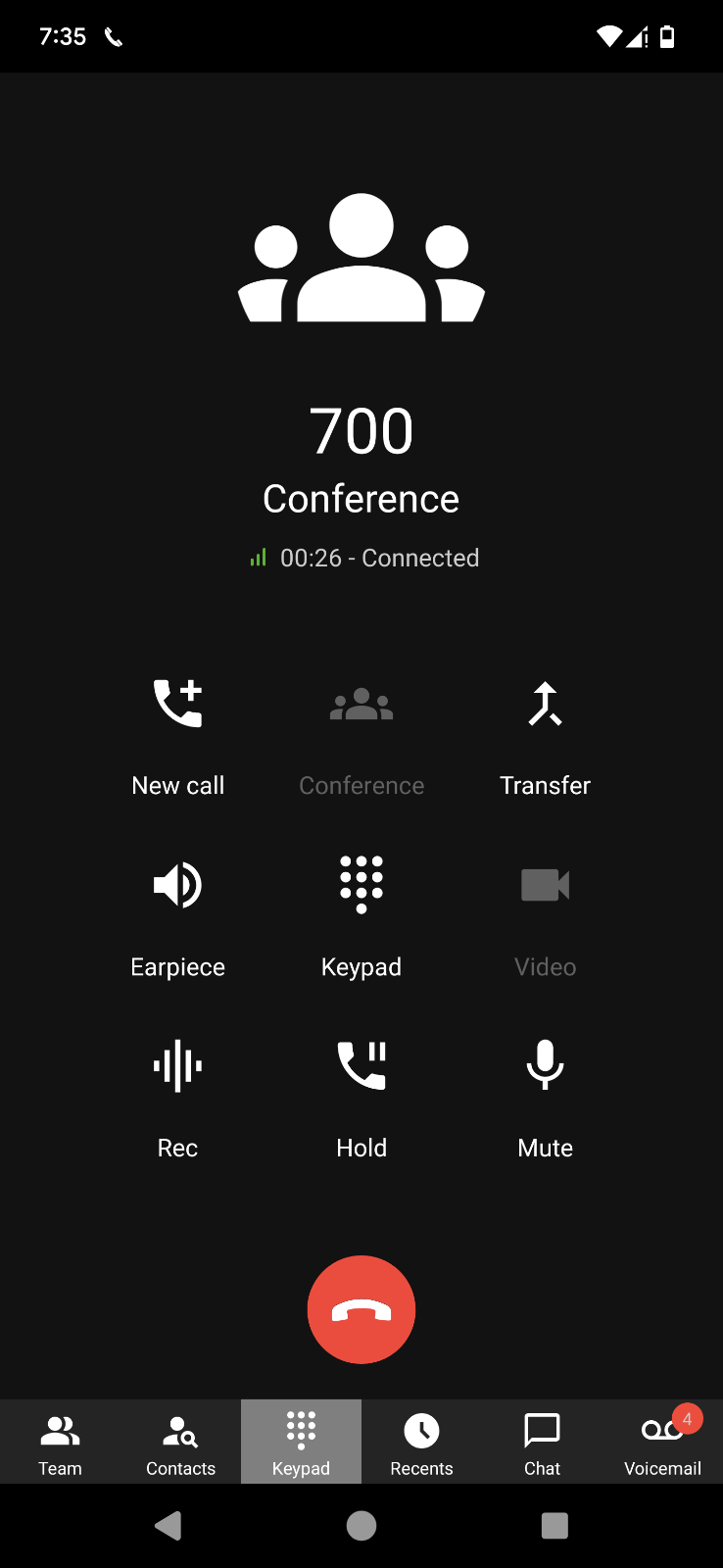
During an active call, the following actions are available:- Transfer (Blind): Transfers the call directly to another party without speaking to them first.
- Transfer (Attended): Places the current caller on hold while you speak to the receiving party. Press Join to complete the transfer once they accept.
- Conference: Adds additional participants to create an ad hoc conference call.
- Rec: Records the active call conversation.
- Video: Upgrades the call to a video call for face-to-face communication.
Using Google Assistant to Make Calls
- Enable Google Assistant
Ensure Google Assistant is enabled on your device and that both the device language and Google Assistant region are set to English (US). - Make a call by name
Say: "OK Google, call James using 3CX". Google Assistant will search your device contacts and pass the result to the 3CX app.- If one contact is found with one number, the call starts immediately.
- If the contact has multiple numbers, the 3CX app will open the contact card for you to select the correct number.
- If multiple contacts share the same name, the 3CX app will display a filtered list for you to choose from.
- Make a call by number
Say: "OK Google, call 101 using 3CX". The 3CX app will dial the specified number directly.
Scheduling a Video or Audio Conference
- Open the Schedule menu
Tap the menu button in the top left corner, then select Schedule.
- Enter conference details
Add a subject, then choose the desired date and time for the conference. - Select conference type
For an audio conference, note the PIN that is automatically generated. For a video conference, enable the Video toggle before continuing. - Add participants
Choose whether to create a calendar event, then tap Add 3CX Contacts to invite attendees. - Finalize the conference
Tap Next. A new calendar entry or a sharing prompt will appear. Share the meeting details via available apps such as WhatsApp, Viber, or Bluetooth, then tap Done.
Creating an Ad Hoc Conference During a Call
- Initiate a conference from an active call
During an ongoing call, tap the Conference button on the dialpad.
- Search for participants
Search by name, extension, or enter a phone number for the person you want to add. - Add participants to the call
Tap the contact to dial them. They will be automatically added to the active conference call.
Setting Your Status
- Open your status options
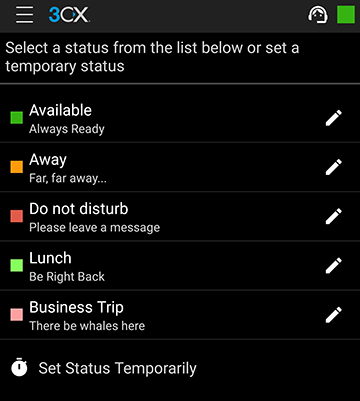
Tap your profile or status icon within the app to view available presence states.
- Select a status
Choose from the following options: Available, Away, Do Not Disturb, Lunch, Business Trip, or Set Status Temporarily. - Customize status and call forwarding
Enter the status profile menu to configure call forwarding rules that correspond to each status, allowing incoming calls to be routed appropriately when you are unavailable.
Customizing App Settings
- Access Settings
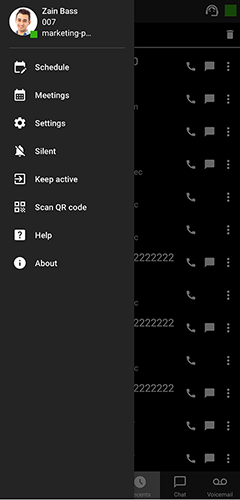
Tap the menu icon at the top of the app to open the main settings panel.
- Configure general options
From the Settings menu, you can:- Add, edit, or switch between 3CX accounts
- Choose a light or dark theme
- Configure audio input and output options
- Request a new Welcome Email for account provisioning
- Configure Advanced Settings
Access Advanced Settings to configure options including:- Car/Bluetooth Support: Optimizes audio routing for hands-free devices
- Silence Detection: Automatically manages audio when no speech is detected
- Battery Optimization: Adjusts background behavior to preserve battery life while maintaining call availability
- Ringtone Customization: Sets a preferred ringtone for incoming 3CX calls
Notes & Tips
- Once a scheduled conference has been created, the participant list cannot be modified. Plan your attendee list carefully before finalizing.
- Scheduled conferences can be shared with participants via any available sharing app on the device, including WhatsApp, Viber, and Bluetooth.
- Joining a video conference from an Android device requires the separate 3CX Video Conference App to be installed.
- If you are not receiving incoming calls on the Android app, the issue is most likely related to PUSH notification delivery. Refer to the 3CX Android PUSH Troubleshooting guide to diagnose and resolve the issue.
- Setting your status appropriately helps colleagues know your availability and reduces unnecessary interruptions.
- Battery optimization settings at the Android OS level can interfere with PUSH notifications and call delivery. If users report missed calls, check that battery optimization is disabled for the 3CX app in Android system settings.